Filtering
Filtering
Three filtering options are available:
- Column Filtering
- Row Filtering
- Page Filtering
Column Filtering
Filter columns by entering free-form text in the column filter input box or using the column dropdown when provided.
Enter a value in the filter text box and press
Additional filters apply with "And" logic.
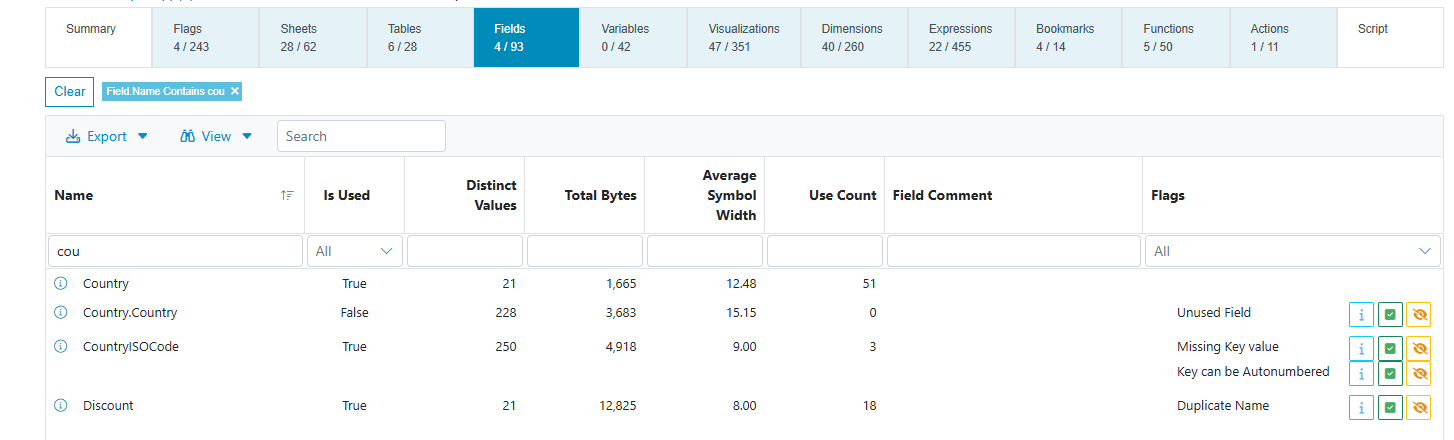
When a filter is active, the navigation ribbon updates to reflect associated counts. For example, filtering the Fields page updates the counts for Tables, Variables, and other related pages.

Column and row filters from different resource pages are retained as separate filter layers. Compatible selections are combined by intersection. If the intersection would be empty, the newer layer replaces the running selection. The Filter Bar shows the active layers; remove an individual layer with its chip or clear all layers with the clear button. Removing a resource page's layer also clears its column filter.
Clear Column Filters
Clear filters using one of these methods:
- Press the
 button on the Filter Bar to remove all filters.
- Remove a single filter by clicking the "X" on the filter chip.
- For a dropdown filter, select "All" from the list.
- Remove the text from a filter text box and press
<Enter>.
Column Filter Modifiers
Use a modifier in the filter to specify the filter operation type as shown below.
| Modifier | Example | Description | Column Type |
|---|---|---|---|
| = | =99 | Equal (default) | Number |
| != | !=99 | Not Equal | Number |
| > | >99 | Greater Than | Number |
| < | <99 | Less Than | Number |
| >= | >=99 | Greater Than or Equal | Number |
| <= | <=99 | Less Than or Equal | Number |
| * | *value | Starts With | Text |
| % | %value | Ends With | Text |
The modifier characters always function as modifiers. You cannot use them directly as search text. As a workaround, use the Page Filter followed by Row Filter "Filter to Visible".
Row Filtering
Filter by row by right-clicking in the grid and choosing an option from the context menu.
- Filter to Selected: Use the currently selected rows as filter criteria. Shading indicates selected status. Select multiple rows using Shift-click or Ctrl-click.
- Filter to Visible: Use all currently visible rows on the page as filter criteria. This works especially well with the page Search function.
The context menu also includes Copy cell value, which copies the value of the right-clicked cell to the clipboard.

Page Filtering
Type text in the grid Search box and press
A Page Filter does not filter other pages.
Page Filters do not persist when you leave the page.

Clear Page Filter
To clear a page filter, remove the text from the Search box and press Enter.