App Groups
An app group combines the analysis of several apps that share a common data model, so you can see which fields are unused across all of them and can be dropped from the shared model. Choose Utilities > App Groups to open the App Groups page.
Create and edit groups
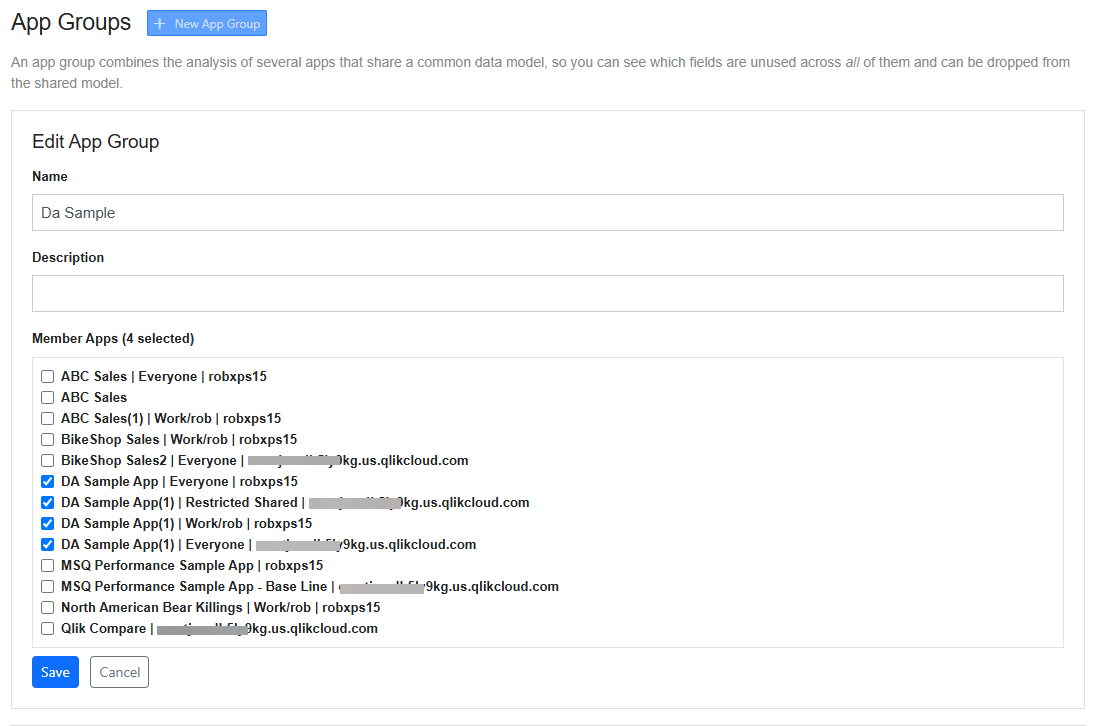
Choose New App Group, enter a Name and an optional Description, select the Member Apps, and choose Save. The name must be unique, and the group needs at least one member app.
The member list shows each app that QSDA has collected, once per app and server. Collections that are collected but not yet analyzed are accepted. When the group runs, QSDA uses the newest analyzed collection for each app. If an app has only collected collections, QSDA starts analysis of the newest one and reports the app as unresolved for that run. Choose Run / Refresh shortly afterwards to include it.
The group list shows each group's Name, Description, number of Members, and Last Run time. Choose Open to view the results, Edit to change the group, or Delete to remove it. Delete does not ask for confirmation.
Run a group
Opening a group computes its results and shows when they were computed. Choose Run / Refresh to compute them again after member apps are collected or analyzed. Back to App Groups returns to the list.
Notices at the top of the page report:
- Member apps that could not be resolved, for example because the app has no analyzed collection, its analysis was just started, or its collection could not be loaded. Unresolved apps are excluded from the results.
- Field names whose cardinality differs widely across apps, which may not represent the same field.
Use the Summary, Fields, and Tables buttons to switch views.
Summary
The Summary view shows the Shared Data Model Size (deduplicated across the apps), Recoverable (Unused) Bytes, and the Fields and Tables counts. Data Model Size by App lists each app's size, symbol and index bytes, field count, and unused fields. Members shows each app's status (Resolved or Unresolved), collection completion time, and collector version. Hover over Unresolved to see the reason.
Fields
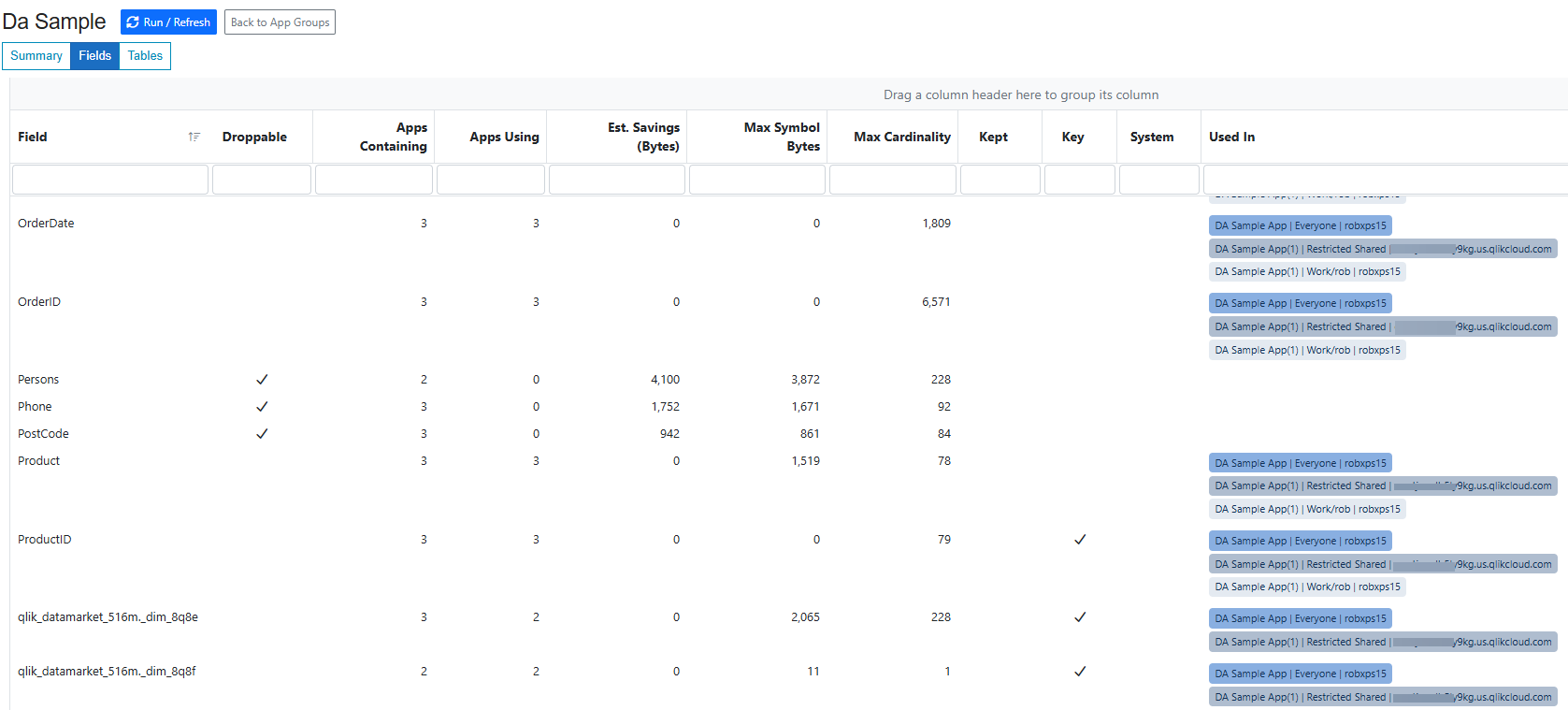
The Fields view lists every field in the member apps, with droppable fields first. A field is Droppable when it appears in at least one app's data model but is used by none, and is never a key or kept in use. Kept marks fields matched by Field Names always in use in Collector Options.
Est. Savings (Bytes) is the field's largest size in any member app. System fields have no estimated savings. Other columns show how many apps contain and use the field, the largest symbol size and cardinality, and the apps that use it.
Choose Drop Fields... to generate a script. Select fields in the dialog to build a Drop Fields statement. A comment at the end of the statement gives the number of fields and the estimated bytes dropped. Choose Copy to copy the script to the clipboard.
Tables
The Tables view lists every table in the member apps with Apps Containing, Max Rows, Total Bytes (All Apps), and Contained In. Expand a row to see the rows, bytes, and fields for each app.