App List Page
If you have multiple connections defined, select a connection to begin. If you have only one connection defined, QSDA selects it automatically.

After you select a connection, the page displays a list of available applications.
-824083be630d2060a334381cbe73ec8f.png)
Connection
Use the Connection dropdown to select one of your defined Qlik Server connections. You create connections in the Admin > Connections page.
If you have multiple connections defined, select a connection to start the App List process. QSDA retains your connection selection while you use the application.
App List
The top section lists applications from the currently selected server connection. The bottom "Offline" section lists Collections in your repository that are not associated with the current connection.
- Light Blue badges
 indicate the count of Collections that have been unloaded from memory but remain available in the QSDA repository.
 - Blue badges
 indicate a count of in-process collectors (collecting properties or building an analysis).
 - Green badges
 indicate an Analysis is in-memory and ready to view.
Selected App Section
Expand any app in the list to view existing analyses and launch a new analysis.
-7f55ad5ce8321fd0539ff40c0bb76edc.png)
Launch a new analysis
- Click the
 button followed by the
  button to start a Collection for the selected app. Before clicking New Analysis, you can adjust these options:
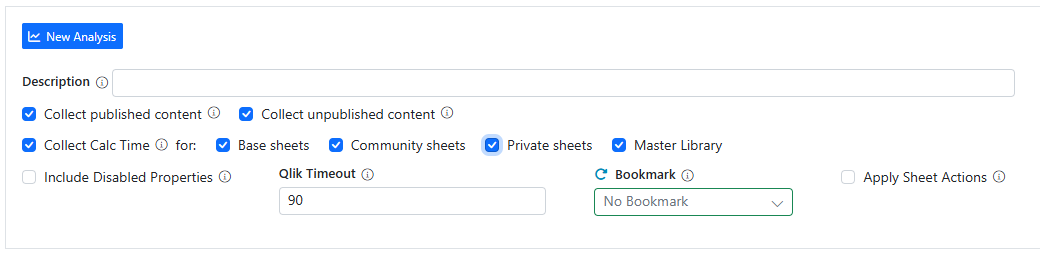
Analysis Options
- Description -- Brief text to identify this analysis, such as "Baseline" or "After drop fields".
- For a published App, options to Collect published content and/or unpublished content.
- Collect Calctime -- Uncheck this option if you do not need chart calculation times for this run. Disabling Collect Calctime can greatly speed up the collection process.
- Include Disabled Properties -- Normally, QSDA does not collect disabled properties because they have no impact on the application. Check this option if you need to collect disabled properties.
- Qlik Timeout -- Maximum seconds to wait for each Qlik operation to complete (for example, a chart calculation).
- Bookmark -- Select an App Bookmark to apply before chart calculation. Choose "--None--" to skip bookmark application.
- Apply Sheet Actions -- Check this option if you require sheet actions to be executed before calculating sheet objects and syntax checking expressions. Use of this option will slow down the collection process. It is recommended to enable it only when required.
- Click the
 button to open the Summary page for the Analysis. This button remains disabled until the analysis reaches Ready status and 100% Progress.
  Load a collection from the QSDA repository and prepare it for viewing.
 Permanently delete a collection from memory and the repository. You cannot undo this action.
 Unload this analysis to free up memory. You can load it again later using the Load button.