Flags Page
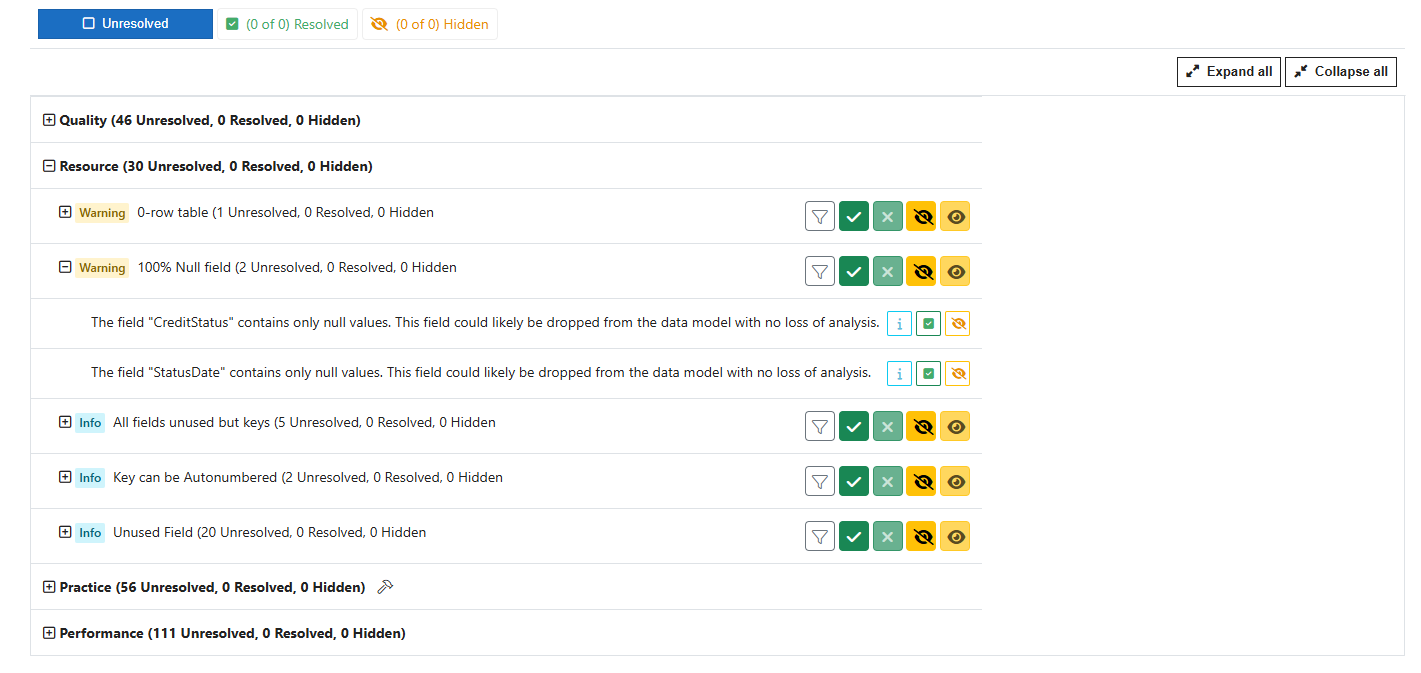
The Flags page lists all flags generated during the analysis. You can expand, collapse, and mark flags as resolved or hidden.
Each flag instance has three name properties:
- Category -- e.g. "Resource".
- Level & Label -- e.g.
 "100% Null Field"
 - Description -- e.g. "Table "CreditStatus" contains zero rows. It could likely be dropped from the data model with no loss of analysis."
The Description may include instance-specific text such as a Field name.
Flag State
Use flag states to assist in filtering and acting on flag recommendations. You can assign one of three states:
- Unresolved -- the initial state.
- Resolved -- a flag you have corrected in the Qlik Sense application.
- Hidden -- a flag you do not want to see, perhaps because you find it unimportant.
Set the state using the buttons to the right of the flag description.
 Mark as Resolved
 Mark as Hidden
 Unmark as Resolved
 Unmark as Hidden
Tooltips on the buttons remind you of their function.
A similar set of buttons  at the Label level sets all child flags at once.
Flag states persist across page refreshes and QSDA Server restarts.
Unresolved flags always appear in the grid. Resolved and Hidden flags appear only when you activate the respective 
 buttons. When Resolved or Hidden flags appear, a small indicator displays to the left of the flag.
-3b3dd6cd6466151d2d9cdb00af8c14e0.png)
Flag Type Filtering
Use the Flag Type Filter  button to filter one or more flag types.
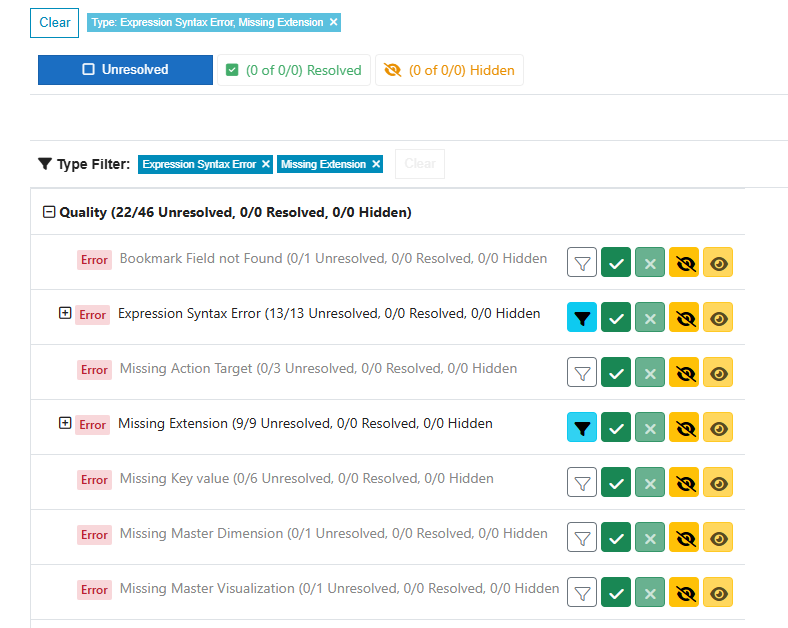
Type Filters may be removed by
- Toggling the filter button
- Clicking a chip in the Type Filter bar
- Clicking the Flag Type chip in the main filter bar. This will remove all Flag Type filters.
Flag Info
Press the  button next to a flag to open the Flag Detail panel. The Detail panel provides more information and context to help you resolve the flag.
Flag Icons
 This is a site defined Custom flag
 Autofix is available for this flag
 Autofix was previously applied, undo is available